

Let’s write Python code to take a screenshot that includes the Mouse Pointer. Let’s go! 🔥⚡✨
It’s important to note that the code we will soon write is designed for Windows 10 and its different flavors, it may not run on non-Windows systems. Now, let’s install the modules we will need:
pip install win32gui
pip install pywin32
pip install Pillow
The pywin32 and win32gui libraries will give us access to the Win32 API libraries from our Python code. PIL is Pillow, a Python imaging library.
Let’s write our first function get_cursor():
def get_cursor():
    hcursor = win32gui.GetCursorInfo()[1]
    hdc = win32ui.CreateDCFromHandle(win32gui.GetDC(0))
    hbmp = win32ui.CreateBitmap()
    hbmp.CreateCompatibleBitmap(hdc, 36, 36)
    hdc = hdc.CreateCompatibleDC()
    hdc.SelectObject(hbmp)
    hdc.DrawIcon((0,0), hcursor)

    bmpinfo = hbmp.GetInfo()
    bmpbytes = hbmp.GetBitmapBits()
    bmpstr = hbmp.GetBitmapBits(True)
    cursor = Image.frombuffer('RGB', (bmpinfo['bmWidth'], bmpinfo['bmHeight']), bmpstr, 'raw', 'BGRX', 0, 1).convert("RGBA")

    win32gui.DestroyIcon(hcursor)
    win32gui.DeleteObject(hbmp.GetHandle())
    hdc.DeleteDC()

    return cursor
Let’s explain what is happening here:
- Usually a screenshot doesn’t show the mouse pointer/cursor position or type. The purpose of this function is to detect and preserve the position and type of the cursor on the screen. It returns value cursor which is an image object that represents our on-screen mouse cursor.
- We use several Win32 API functions to get an image of the cursor that is on-screen when we take a screenshot.
- Image.frombuffer() creates an image memory with pixel data in a byte buffer. This method will return an image of our cursor.
Next we write pointer_ellipse() function which will draw an ellipse around the mouse pointer for enhanced visibility:
def pointer_ellipse(image_path, output_path, xpos, ypos):
    image = Image.open(image_path)
    draw = ImageDraw.Draw(image,'RGBA')
    draw.ellipse((xpos-30, ypos-30, xpos+30, ypos+30), outline="black", width=1, fill=(100, 100, 0, 128))
    image.save(output_path)
Let’s explain what is happening here:
- This function will accept 4 parameters:
- image_path which is the original screenshot image.
- output_path is the final screenshot with the mouse pointer and a small ellipse around the mouse pointer.
- xpos is the x coordinate for the mouse pointer location
- ypos is the y coordinate for the mouse pointer location
- We open the original screenshot image and draw a small, transparent yellow ellipse with the draw.ellipse() function. This ellipse/marker will be drawn around the position of the mouse pointer or cursor to make it easier to see.
- Finally, save the modified image to disk.
Here is our complete code:
import ctypes, win32gui, win32ui
from PIL import Image, ImageGrab, ImageDraw

import time

def get_cursor():
    hcursor = win32gui.GetCursorInfo()[1]
    hdc = win32ui.CreateDCFromHandle(win32gui.GetDC(0))
    hbmp = win32ui.CreateBitmap()
    hbmp.CreateCompatibleBitmap(hdc, 36, 36)
    hdc = hdc.CreateCompatibleDC()
    hdc.SelectObject(hbmp)
    hdc.DrawIcon((0,0), hcursor)

    bmpinfo = hbmp.GetInfo()
    bmpbytes = hbmp.GetBitmapBits()
    bmpstr = hbmp.GetBitmapBits(True)
    cursor = Image.frombuffer('RGB', (bmpinfo['bmWidth'], bmpinfo['bmHeight']), bmpstr, 'raw', 'BGRX', 0, 1).convert("RGBA")

    win32gui.DestroyIcon(hcursor)
    win32gui.DeleteObject(hbmp.GetHandle())
    hdc.DeleteDC()

    pixdata = cursor.load()
    minsize = [32, None]

    width, height = cursor.size
    for y in range(height):
        for x in range(width):

            if pixdata[x, y] == (0, 0, 0, 255):
                pixdata[x, y] = (0, 0, 0, 0)

            else:
                if minsize[1] == None:
                    minsize[1] = y

                if x < minsize[0]:
                    minsize[0] = x

    return cursor

def pointer_ellipse(image_path, output_path, xpos, ypos):
    image = Image.open(image_path)
    draw = ImageDraw.Draw(image,'RGBA')
    #draw.ellipse((100, 150, 275, 300), outline="black", width=1, fill=(100, 100, 0, 128))
    draw.ellipse((xpos-30, ypos-30, xpos+30, ypos+30), outline="black", width=1, fill=(100, 100, 0, 128))
    image.save(output_path)


time.sleep(3) #gives us time to set up the scene

size = round(ctypes.windll.shcore.GetScaleFactorForDevice(0) / 100 * 32)

cursor = get_cursor()

pixdata = cursor.load()
minsize = [size, None]

width, height = cursor.size
for y in range(height):
    for x in range(width):

        if pixdata[x, y] == (0, 0, 0, 255):
            pixdata[x, y] = (0, 0, 0, 0)

        else:
            if minsize[1] == None:
                minsize[1] = y

            if x < minsize[0]:
                minsize[0] = x

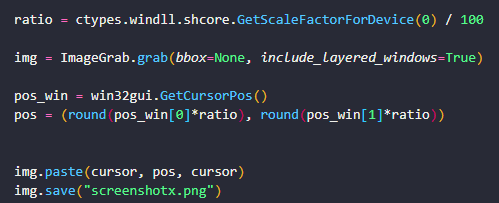
ratio = ctypes.windll.shcore.GetScaleFactorForDevice(0) / 100

img = ImageGrab.grab(bbox=None, include_layered_windows=True)

pos_win = win32gui.GetCursorPos()
pos = (round(pos_win[0]*ratio), round(pos_win[1]*ratio))

img.paste(cursor, pos, cursor)
img.save(f"screenshotx.png")
pointer_ellipse(f"screenshotx.png", f"ellipse_{int(time.time())}.png", pos[0], pos[1])
Let’s explain what is happening here:
- We add a small pause before the main statement body executes because this gives us time to set up the scene to be recorded with the screenshot. The sleep() function takes one integer parameter which represents the number of seconds to wait before taking the screenshot.
- So next we begin the main body of the program. We call get_cursor() function and then the screenshot is taken and saved to disk with the img.save() method. But just before this happens, we call img.paste() which paints the exact position and type of the mouse pointer/cursor in the screenshot to be saved.
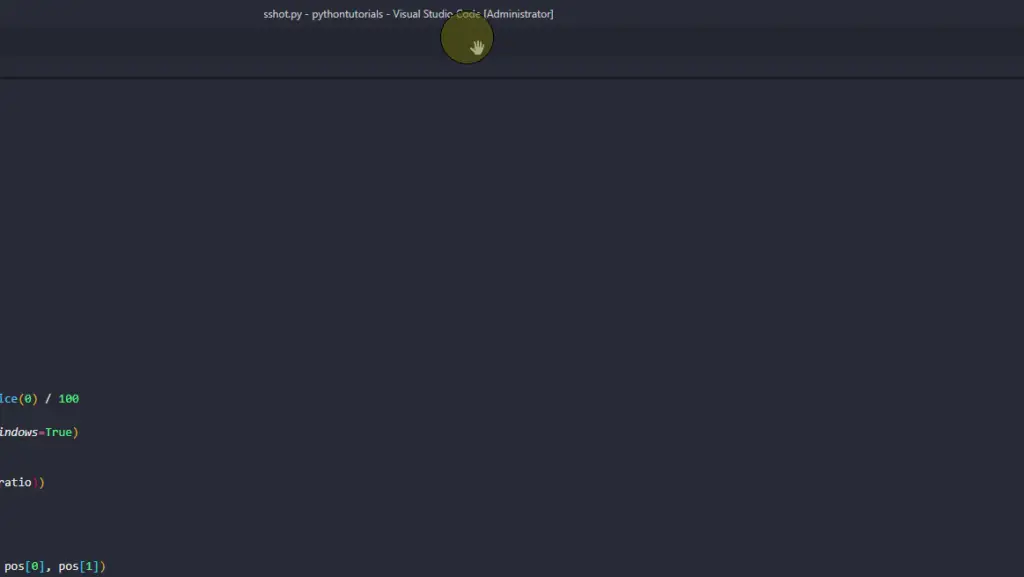
- Finally, we call pointer_ellipse() function which will paint the yellow circle around the mouse pointer.
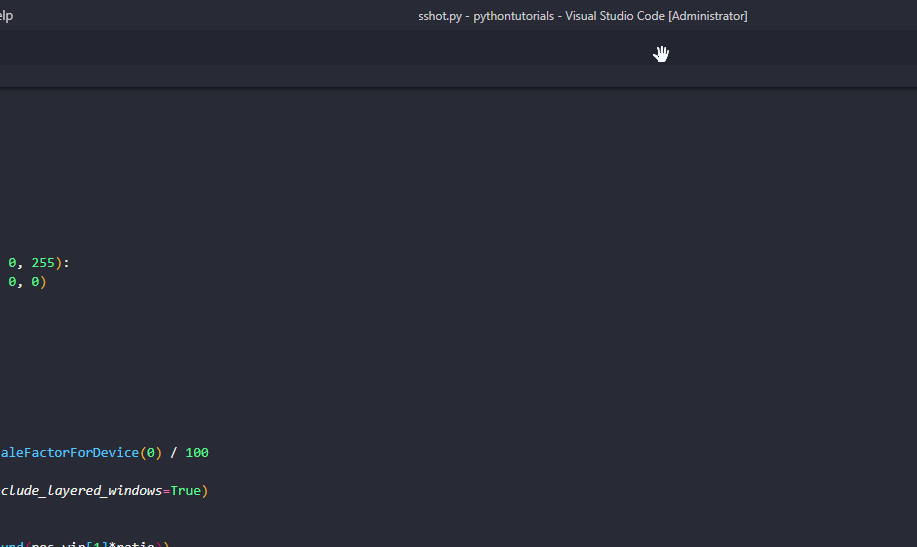
- When the above code executes we will have two new image files in the same directory as the python script:
- screenshotx.png, which is the screenshot that contains the mouse pointer
- ellipseXXXXXXXXXX.png, which is the final screenshot that contains the mouse pointer and the pale yellow circle. We also append the date and time to the file name for record keeping purposes.
Great! So we achieved our goal. Let’s see what our screenshots look like:
Thanks for reading! And keep on coding! 👌👌👌
